Anthology Ally for Brightspace (formerly Blackboard Ally) is an accessibility tool that will soon be integrated into Brightspace Spring ’26 course shells to help faculty create more inclusive course materials.
Ally automatically checks uploaded text and image files—like PDFs, Word documents, PowerPoints, and images—for accessibility issues and provides clear guidance and feedback on how to fix them. It also generates alternative formats (such as audio, HTML, and ePub) so students can access content in the way that works best for them.
What is Digital Accessibly?
Digital accessibility means creating documents, videos, and other online content so people can access and understand them in more than one way. This includes being able to read, listen to, watch, or navigate content using different senses and tools, such as screen readers, captions, keyboards, or audio descriptions. This does not mean having to provide multiple versions of each piece of content, but that the content is formatted so that people can access it in different ways or with a variety of accessibly tools, for example:
- A Word or PDF document that uses clear headings, readable text, and descriptive links, so it can be read both visually or with a screen reader.
- A video that includes captions, allowing people who can’t hear the audio to follow along by reading.
- An image with a short text description (alt text) that explains what’s important, so the information is available to be read out by a screen reader to someone who can’t see the image.
When content is accessible, everyone can get the same information, even if they see, hear, move, or process information differently.
Learn more about digital accessibly, including what it is, why it matters, and basic best practices:
- Designing Accessible Digital Content is a five-hour, self-paced training discoverable on UMS Academy for all University of Maine System (UMS) employees. It is appropriate for all employees who create, post, or share digital content.
- Designing Accessible Brightspace Courses is a shorter, more targeted training for faculty, covering the most common issues in online course materials. It is also self-paced and discoverable on Brightspace for anyone with a maine.edu account.
- The One Small Thing Series is a set of short videos on the “what,” “why,” and “how” of common digital accessibility best practices.
What Things can Ally Check?

Ally can only check specific content types, and only access materials in a Content Module.
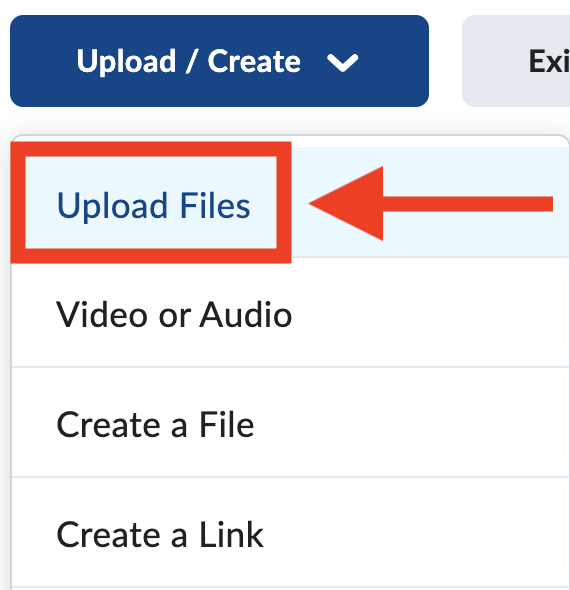
Ally can check the following types of files that are uploaded into Content Modules in your course through “Upload Files” from the “Upload/Create” button:
- PDFs
- Microsoft Word files
- Microsoft PowerPoint files
- OpenOffice/LibreOffice files
- HTML files
- Image files (JPG, JPEG, GIF, PNG, BMP, TIFF)
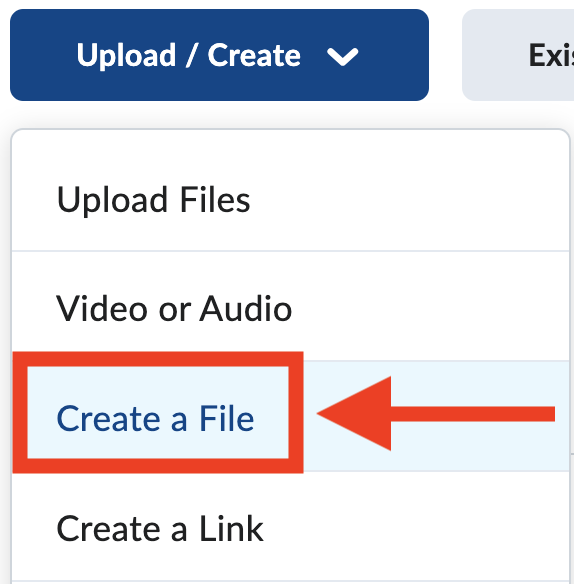
Ally can also check Brightspace pages (HTML) created using “Create a File” from the “Upload/Create” button, and the HTML description box under links to module content.
You can also check the accessibility in of content in these HTML areas using the Brightspace Accessibility checker. Both are great options for checking the accessibility of your content, and may be used individually or in tandem – whatever works best with your content creation workflow!

What Does can Ally Not Check?
Ally cannot scan:
- course files that are only linked from within a module description box or Brightspace page
- Kaltura (my media) videos or audio
- video and audio files uploaded directly into Brigthspace
- documents and webpages linked to from an outside source or Google Drive (added using “Create a Link” from the “Upload/Create” button)
These items will need to be checked used other methods to ensure they are accessible before adding to your course.
The Ally Accessibility Score
Finding the Content Accessibility Score
In your course, go to Content in the Navbar. Then look at one of your module pages to see the Ally symbols that appear to the right of content items.
Note: The score icon is not visible to learners.
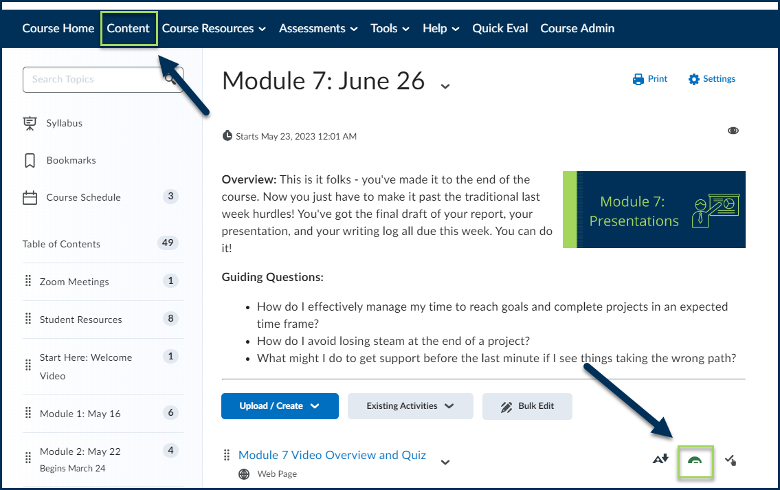
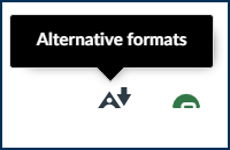
Ally will have two icons next to it. The first indicates where to download the Alternative Formats option. We will discuss those later in this page. The Alternative Formats option is visible to the instructor and the students.
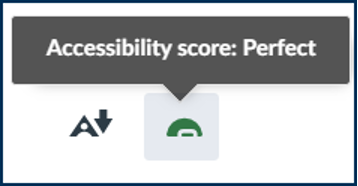
The second icon is the Accessibility Score. It is visible only to the instructor.
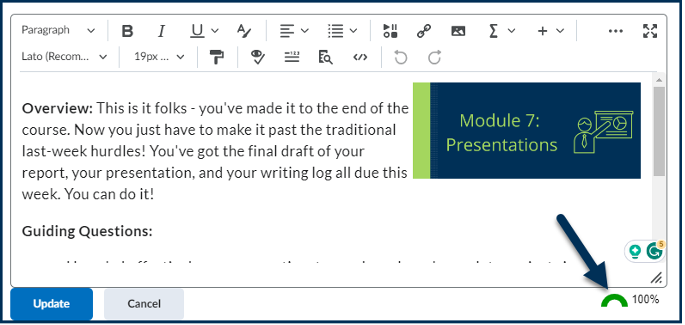
You can also check the accessibility score for Brightspace HTML pages and content descriptions by opening the HTML editor. Then, you will see the score at the bottom right.
For all views, you click on the score to see more details.
Accessibility Score Key
Accessibility scores range from low to perfect and are represented by a spectrum of color from red to green:
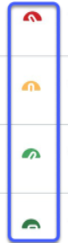
- Low (Red – 0-33%): Needs help! There are severe accessibility issues.
- Medium (Yellow – 34-66%): A little better. Somewhat accessible and needs improvement.
- High (Light green – 67-99%): Almost there. Accessible but more improvements are possible.
- Perfect! (Dark green – 100%): No accessibility issues are detected but further improvements may still be possible. Some issues can only be discovered with knowledge and human review.
Important: The Ally score alone does not guarantee a 100% accessible course.
Like any accessibility checker, Ally can only check accessibility requirements that can be detected by machine, and only on the content it can see. Some issues can only be identified by human review. For example, Ally can determine if alt text is present, but only a human can determine if the alt text appropriately describes that image in context. Ally is simply another tool which, when combined with thoughtful design and the other content-specific tools available, can help you create more accessible courses.
Accessibility Score Details
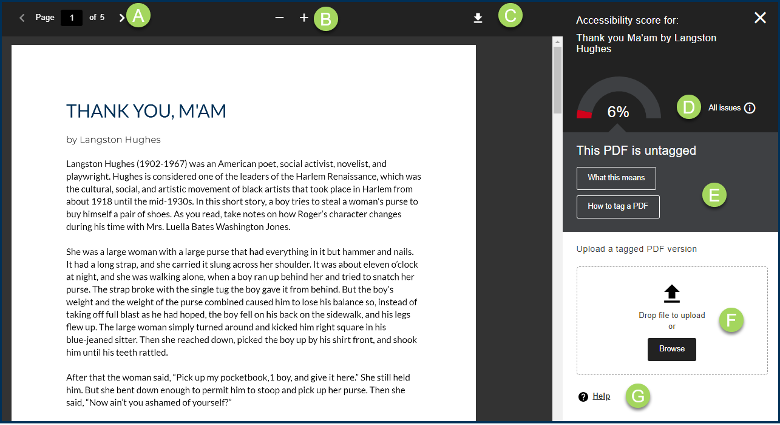
When you select the Accessibility Score, it will open the content in a window with the score and the found accessibility issues in a side panel. From here, you have access to the following features and functions:
- Move through the pages of the document (if applicable)
- Zoom in/out of the content
- Download file
- Select “All issues” to get a more detailed list of problems
- For each issue, it tells you what needs to be changed
- Upload a corrected file to replace it
- Access Ally help documentation for this specific issue

Need additional help with a particular piece of content? Email us at caihelp@maine.edu!
Alternative Formats
Finding the Alternative Formats
As we have covered, items with content modules an icon to download Alternative Formats. The Alternative Formats option is visible to the instructor and the students.
This allows both faculty and students to download that content in a variety of alternative formats, including:
- Optical Character Recognition (OCR)’d version (for scanned documents)
- Tagged PDF (currently for Word, Powerpoint and OpenOffice/LibreOffice files)
- ePub (to be readable on an e-reader)
- Electronic braille (for those who are blind and read by braille)
- MP3 Audio file
- BeeLine Reader opens in new window (often helpful for those with dyslexia, ADHD, and vision impairments)
- Immersive Reader (digital reading tool created by Microsoft that provides a customized reading experience by offering features like text-to-speech, real-time translation, and line focus)
- Translated Version
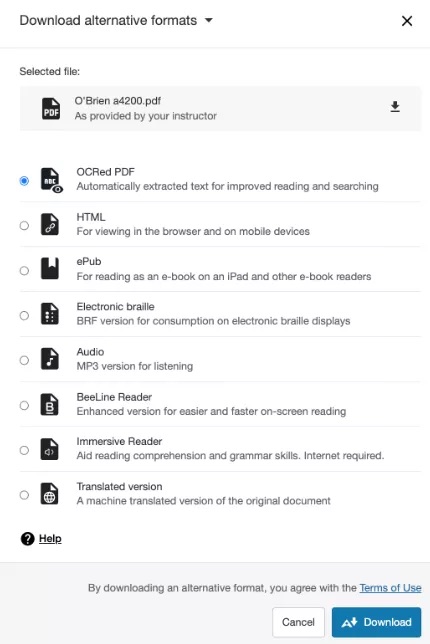
These provide options for students to engage with their course content in the way that works best for their learning preferences, situational needs, and disability needs. But, these formats will only provide accurate alternatives if the source content is accessible.
The ability to download multiple formats does not negate the need for the original content to be made accessible. The source content must also be accessibile to meet Title II requirements and for these alternative formats to generate correctly.
Disabling/Enabling Alternative Formats
There may some situations where providing the alternative formats would negatively affect the learning outcome associated with that content. For example, in a language class where you want students to translate a piece of text, providing a translated version as an alternative format would not be appropriate.
In those cases, you can turn off alternative formats for individual content items. If you do, you can enable it again later if needed. Do this sparingly and only when necessary because this tool is very beneficial for student learning, allowing them to access to file types that work best for them.
Note: This only disables alternative formats on the selected content item. You must follow these steps for every content item you want to disable.
To Disable Alternative Formats:
- Find content with the Download Alternative Formats icon and select the icon.
- Select the menu beside the “Download alternative formats” heading.
- Select “Disable alternative formats for this file.”
- Select “Close.”
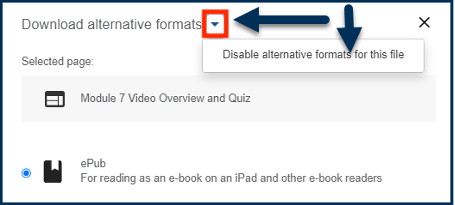
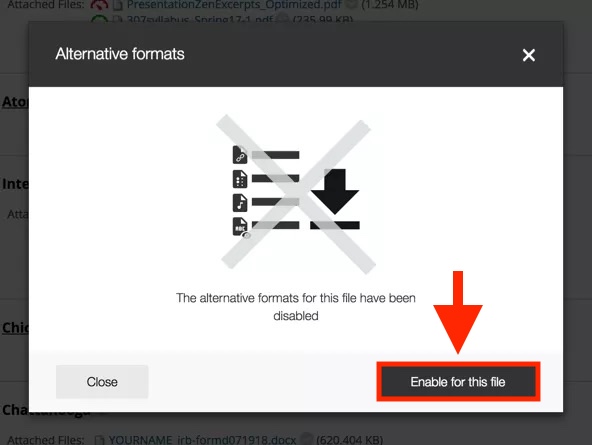
If students try to download alternative formats when disabled, they see a message telling them the alternative formats for that content item aren’t available.
To Enable Alternative Formats:
- Find content with the Download Alternative Formats icon and select the icon..
- Select “Enable for this file.”
- Select “Close.”
Ally Reports
Ally’s course accessibility report reviews the entire course and creates an overall score for all elements in the course.
Access the Ally Report
To access your Ally Report, open your course and click “Tools” in the Navbar and then click “Ally Course Accessibility Report”.

Making Sense of Your Course Report

- At the top of the report is an Accessibility Score for the entire course.
- The Overview tab shows the number of content in your course that Ally has scanned, grouped content type. This can be helpful to see what types of content you use the most, so you can seek out accessibility training and resources for that content type.
- The Overview also shows you the issues that are the quickest and easiest to fix, and the issues that are most severely impacting student access, with “Start” buttons to go right to those issues for remediation. These help you determin what content to start with in your course.
- At the bottom of the report is a list of Remaining Issues. The default view is issues listed by severity. This can also help you decide where to start making corrections. You can select on one of the remaining issues, which will take you either to a module in your course that has the issue or directly to the document.

The Content tab lists each piece of content Ally has scanned in your course. The default view is listed by Score, with the lowest scores listed first. This can also help you decide where to start making corrections. Select the document to open it and see the accessibility score details and tips/help for fixing any issues.
Need additional help? Email us at caihelp@maine.edu!
