
Google Workplace is a great tool for creating and sharing documents, sheets, and slides, but it has some barriers for people with disabilities. Grackle is an add-on that checks and fixes accessibility issues in Google Docs. The University of Maine System has purchased a license to this tool for all faculty, staff, and students to use to make their Google materials more accessible.

Using Grackle for Google Workspace
If you have not done so yet, install Grackle Docs, Grackle Sheets, and Grackle Slides. Grackle is available to install at no cost when logged into your maine.edu account.
Launching the Grackle Accessibility Checker
- Open the Google Doc, Slides, or Sheets file you want to check.
- Select Extensions.
- Select Grackle Docs.
- Select Launch.
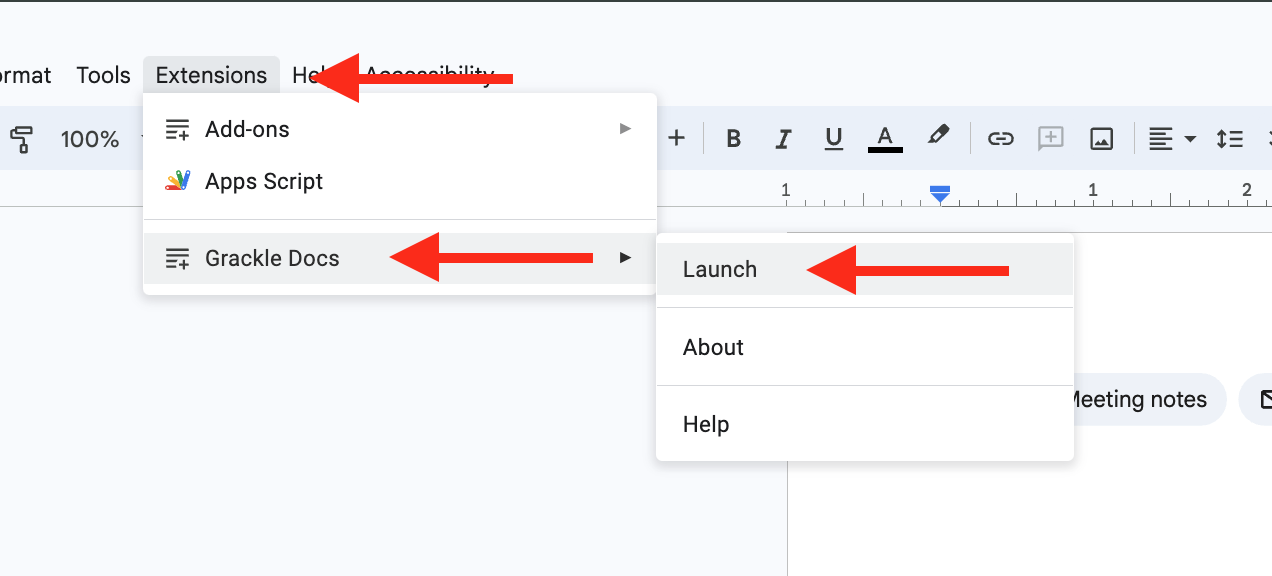
The Grackle Docs window will open on the right of your document and begin it’s accessibility check. It will take a few minutes to run and provide you with an accessibility report.
Reading your Grackle Report
Grackle will scan for any accessibility issued that are able to be automatically detected. The report will identify accessibility criteria with the following:
- Red X = Failed
- Green check = Passed
- Green check with Exclamation = Passed with Warning

Clicking on failed items will provide you with buttons to locate and/or tag (or fix) those issues.

How to Fix Common Errors with Grackle
Below you will find common accessibility fails organized by Grackle section. For additional information and instruction on digital accessibility, check out:
Common Errors in Grackle Docs
Documents
Document title is required
Your document title typically defaults to the Google Doc name, but you can confirm and edit your document title if needed.
- Open Grackle Docs.
- Select Document title is required.
- Select Edit or check Use the Google Doc name.
Document language should be specified
Your document’s language will most likely be predetermined. If you need to change your document’s language:
- Select File in the top menu.
- Select Language.
- Choose your desired language from the list.
Images
Images should have alternative text or mark as artifact
- Select the image that is being flagged.
- Select Image Options.
- Select Alt Text.
- Enter your alt text into the Description text field or if the image is purely decorative and/or is already described on the page check “Mark as artifact.”

Drawings should have alternative text or mark as artifact
- Select the image that is being flagged.
- Select Image Options.
- Select Alt Text.
- Enter your alt text into the Description text field or if the drawing is purely decorative and/or is already described on the page check “Mark as artifact.”
Equations should be described
Mathematical equations in Google Docs are not fully accessible and need alt text added.
- Open Grackle Docs.
- Select Equations should be described.
- Select TAG.
- Add accurate alt text in the description box.
Headings
Properly formatted headings are one of the most important accessibility features in documents. If you are new to using program styles to create headings, check out our One Small Thing video on using headings.
Headings should be used
If text is visually a heading, it must also have a programmatic heading (also known as a “heading tag.”)
To add a heading tag to your heading:
- Select the text you want to make a heading.
- Select the Styles dropdown in the toolbar.
- Select a heading level.
A single “Heading 1” should be used
Each document should have at least one “Heading 1”.
- Select the text you want to make the Heading 1. This is usually the title of your document.
- Select the Styles dropdown in the toolbar.
- Select Heading 1.
Headings must be properly nested
Use heading levels in order and do not skip heading levels.
Example of a correct heading structure:
Heading 1: Main title
Heading 2: Subheading
Heading 3: Sub subheading
Heading 3: Sub subheading
Heading 2: Subheading
To change a heading tag:
- Select the text you want to make a heading.
- Select the Styles dropdown in the toolbar.
- Select your desired heading level.
Tables
Tables must be tagged or marked as layout tables
It is best practice to only use tables for tabular data, not for page layout. Tables must have a header row, which include the labels for all the data cells underneith and is tagged as a header row using Grackle.
To tag a table:
- Open Grackle Docs.
- Select Tables must be tagged or marked as layout tables.
- Select TAG.
- In the pop-up window, mark header and column rows appropriately, or mark the table as a layout table.
- Select Update.
The use of merged cells is not recommended
Make sure that you don’t have any merged cells in your table. Merged cells make it more difficult to interpret information.
The use of empty cells is not recommended
Make sure that all of your table cells have content. Empty cells can make tables more difficult to navigate and interpret data.
Common Errors in Grackle Sheets
Sheets
Sheet names should be descriptive
Each individual sheet in your Google Sheet should have a unique name. This makes it easier for folks to navigate your document and understand its context.
Avoid the default “Sheet1” that pre-populates when you create a new sheet.
To rename an individual sheet:
- Select the downward carrot on the sheet that you would like to rename.
- Select Rename. Give your sheet a descriptive and unique name.
Sheets should not be empty
Each sheet in your Google Sheets document should have some content. Empty sheets could be confusing or disorienting for some users.
Tables
Tables should have headers
To add a header row or column to your table, you will need to:
- Add your header row or column information.
- In the top toolbar, select View.
- Select Freeze.
- From the pop-out menu, select which rows or columns you would like to “freeze”. Freezing rows will programmatically add table headers.
As an alternative, you can also add pre-built tables.
- In the top toolbar, select Insert.
- Select Tables.
- In the sidebar menu, add a new table that matches your data needs. These tables already have headings added.
The use of merged cells is not recommended
Make sure that you don’t have any merged cells in your table. Merged cells make it more difficult to interpret information.
Avoid isolated cells
Data cells that are separated from the rest of your content can be difficult (or impossible!) for some users to find. Avoid adding content that is separated in your sheets.
Charts
Charts should have alternative text
Like all important images, charts must have a text description. To add alt text:
- Select your chart or graphic that does not have a text description.
- Select the three vertical dots in the upper right corner.
- Select Alt Text.
- In the pop-up sidebar menu, add your text description.
Common Errors in Grackle Slides
Slides
A slide should have a title
If your slide does not have a title element, you will need to add one.
- Right-click the slide that does not have a title.
- Select Apply Layout.
- Select a layout with a “Title” element. Some examples include “Title Slide”, “Title and Body”, “Title and Two Columns”, “Title Only”, and “Title and Content”.
Note: You may need to reformat your slide to accommodate the new Title element.
Slide title should be unique
Having unique slide titles makes it easier for people to navigate your content. Make sure each slide title is different.
A slide should not be empty
Empty slides can make it more difficult for some users to navigate your content. Make sure that each slide in your presentation has content.
Elements
Images (and elements) should have alternative text or mark as artifact
- Select the image or element that is being flagged.
- Select Image Options.
- Select Alt Text.
- Enter your alt text into the Description text field or if the image is purely decorative and/or is already described on the page check “Mark as artifact.”
Text boxes should not be empty
Sometimes extra text boxes are left in a presentation on accident. Make sure to remove any text boxes that do not have content.
Lists should not be broken apart
Unordered lists (typically seen as bullet-point lists) should have an “unordered list” tag applied.
Order lists (typically seen as numbered lists) should have an “ordered list” tag applied.
Tag lists by:
- Select the text you want in your list.
- In the toolbar, select Bulleted list or Numbered list.
If a list is broken apart, you will need to reformat your list to recombine it.
Written by Rachel Church. Adapted from UC Berkely’s Digital Accessibility – Google Workspace.
Last updated on June 9, 2025.
